GPU Debuging on Mac - Metal Debugger

Hello Everyone,

I was searching for debuggers for use on Mac.

Unfortunately both RAD Debugger and RemedyBG are unavailable on Mac.

So I am going for LLDB with Sublime text and Tracy Profiler for debugging.

See: An Introduction to Tracy Profiler

—-

There should be more tooling for the low level stuff like web world has.

—-

Which brings me to the GPU side of things.

I need some help attaching the Metal Debugger on MacOS.

Here’s how it looks: Press Start: Game development on Apple platform

I got the Performance HUD showing with METAL_HUD_ENABLED=1 env variable.
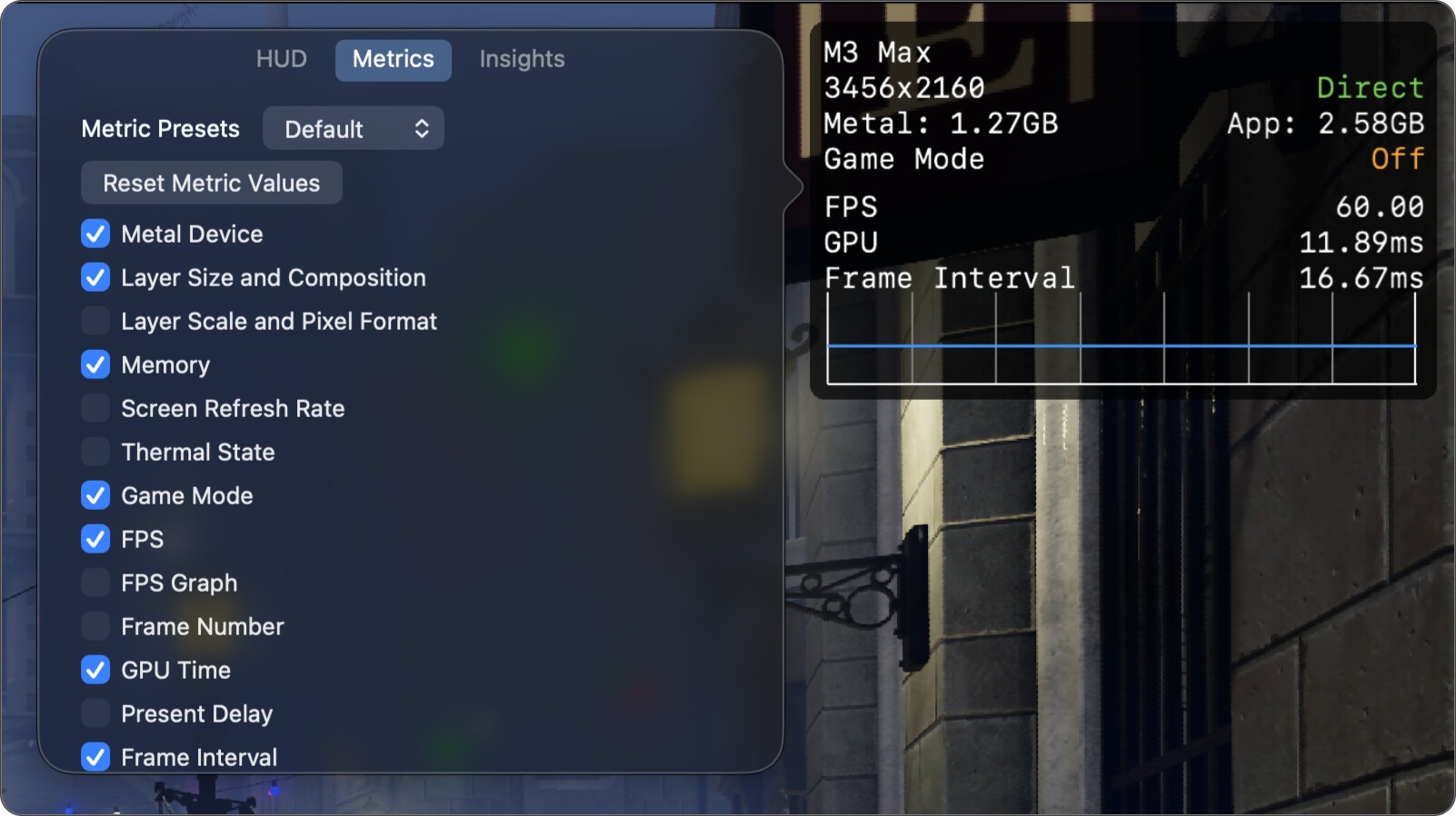
Alas METAL_CAPTURE_ENABLED=1 didn’t work. The HUD said that the capture mode is active. But capture shortcut didn’t work because MacOS blocks that feature for debug builds that are not Xcode built app or something.

—-

Luckily, It can be done programmatically as well: Capturing a Metal workload programmatically.

Here’s a blogpost: How to Capture Metal frame capture outside of Xcode.

—-

So how to do it using Odin?

I am following an SDL3 GPU playlist and I don’t have visibility into the GPU.

—-

How do you debug and check intermediate GPU changes? There’s no print nothing.

if a big pink background shows up, how do you figure out what’s happening?

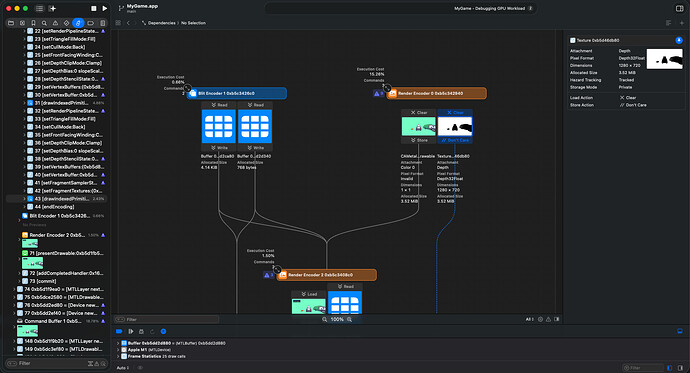
I want to watch the stuff we copy to GPU, see the sets, binds, buffers, transformations happening, NDC view.

Maybe have a view like shader Node editors do, which can show what’s happening after each line of code.

—-

P.S. I don’t know any alternative to Metal Debugger, let me know if there is something else.

P.P.S. I wish I can write shader code in Odin.
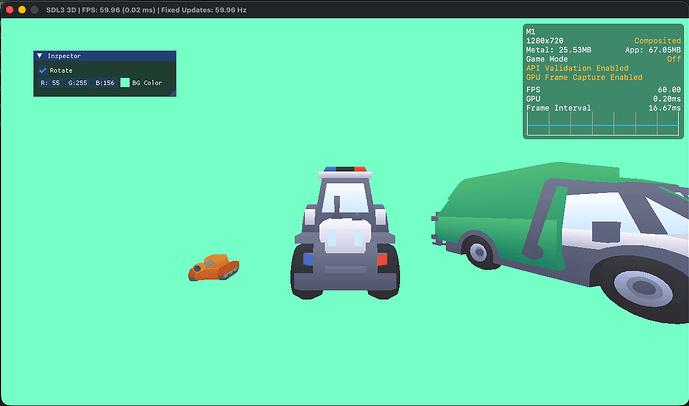
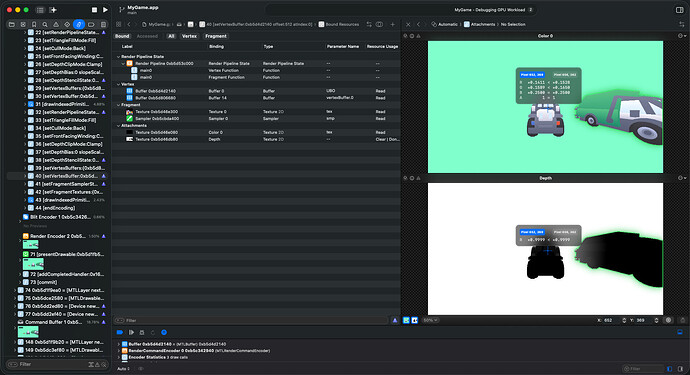
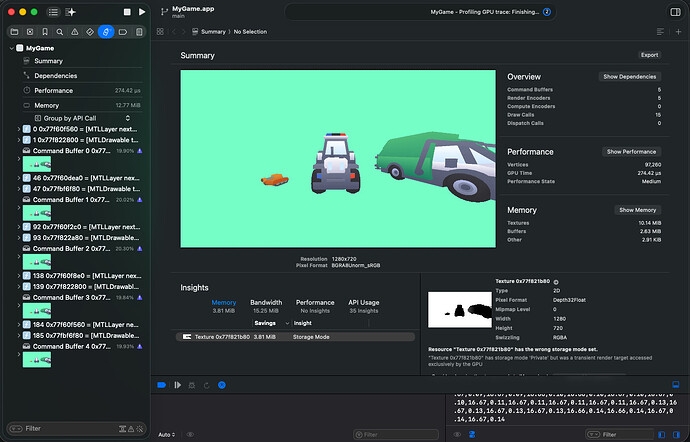
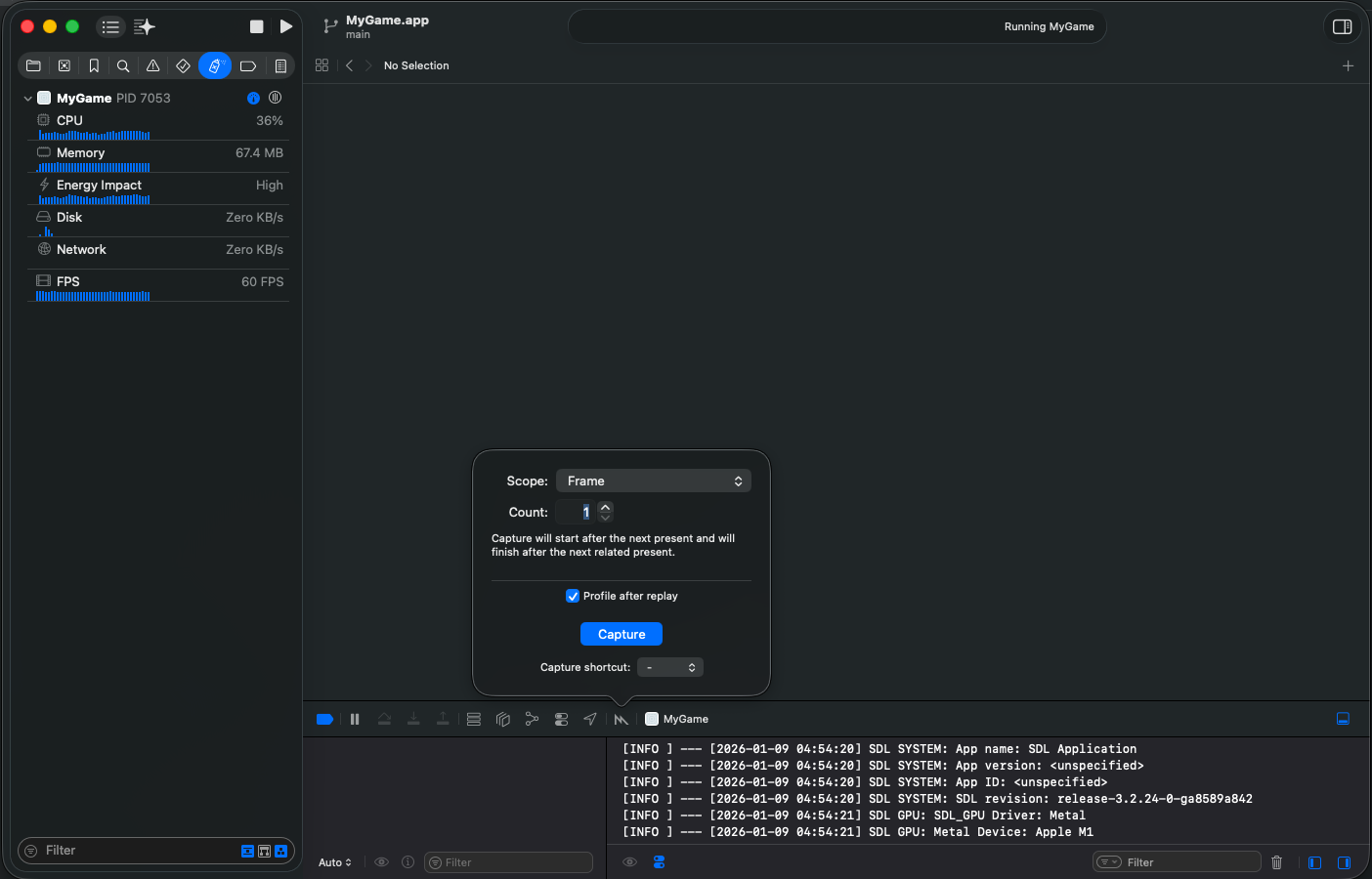
Here it is working with a bundled app. The capture doesn’t work if it’s not a Mac App.

Here is a Info.plist to put inside the bundle:

<?xml version="1.0" encoding="UTF-8"?>
<!DOCTYPE plist PUBLIC "-//Apple//DTD PLIST 1.0//EN"
 "http://www.apple.com/DTDs/PropertyList-1.0.dtd">
<plist version="1.0">
<dict>

    <!-- Identity -->
    <key>CFBundleName</key>
    <string>MyGameDev</string>

    <key>CFBundleDisplayName</key>
    <string>MyGameDev</string>

    <key>CFBundleIdentifier</key>
    <string>com.example.mygame.dev</string>

    <key>CFBundleExecutable</key>
    <string>MyGame</string>

    <key>CFBundlePackageType</key>
    <string>APPL</string>

    <!-- Versions -->
    <key>CFBundleVersion</key>
    <string>1</string>

    <key>CFBundleShortVersionString</key>
    <string>0.1.0-dev</string>

    <!-- Cocoa -->
    <key>NSPrincipalClass</key>
    <string>NSApplication</string>

    <key>NSHighResolutionCapable</key>
    <true/>

    <key>LSUIElement</key>
    <false/>

    <key>NSAppSleepDisabled</key>
    <true/>

    <!-- Metal GPU capture / validation -->
    <key>METAL_DEVICE_WRAPPER_TYPE</key>
    <integer>1</integer>

    <key>MTL_ENABLE_GPU_CAPTURE</key>
    <true/>

    <key>LSEnvironment</key>
    <dict>
        <key>MTL_HUD_ENABLED</key>
        <string>1</string>

        <key>MTL_DEBUG_LAYER</key>
        <string>1</string>

        <key>MTL_ENABLE_DEBUG_INFO</key>
        <string>1</string>

        <key>MTL_CAPTURE_ENABLED</key>
        <string>1</string>
    </dict>

    <!-- Game / app category -->
    <key>LSApplicationCategoryType</key>
    <string>public.app-category.games</string>

    <key>LSSupportsGameMode</key>
    <true/>

    <key>MTLDevicePreference</key>
    <string>HighPerformance</string>

    <!-- Minimum macOS -->
    <key>LSMinimumSystemVersion</key>
    <string>12.0</string>

</dict>
</plist>

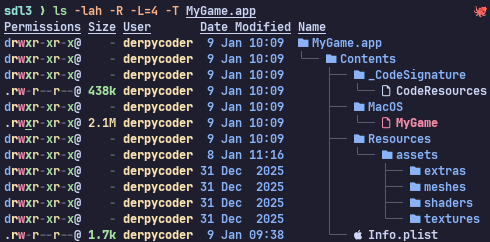
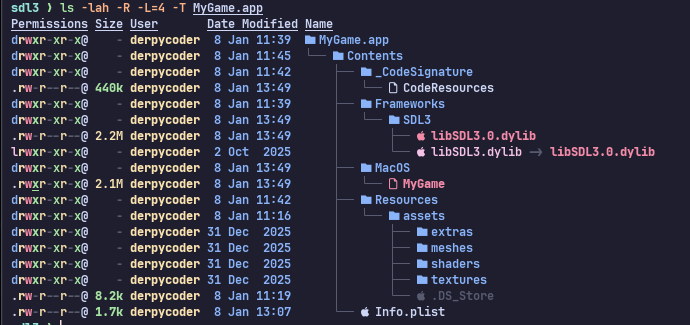
Directory structure of the Mac app


Learning from Tutorial


Metal Debugger

1 Like

Here’s some commands to Make the Mac bundle, took me a while to find out, so it might help someone like me.

# Verify the Info.plist
plutil -lint Info.plist

mkdir -p MyGame.app/Contents/MacOS MyGame.app/Contents/Resources

# Copy stuff in if the files are modified, like the Info.plist, Executable and Assets
rsync -au --checksum                      Info.plist MyGame.app/Contents/Info.plist
rsync -au --checksum                        ./MyGame MyGame.app/Contents/MacOS/MyGame
rsync -a  --checksum --exclude='.DS_Store' ./assets/ MyGame.app/Contents/Resources/assets/

# Make the Bundle executable
chmod +x MyGame.app

# Adhoc sign it for dev build
codesign -fs                   - MyGame.app

# Verify if the Bundle is valid
codesign -v --strict --verbose=2 MyGame.app

Info.plist

<?xml version="1.0" encoding="UTF-8"?>
<!DOCTYPE plist PUBLIC "-//Apple//DTD PLIST 1.0//EN"
 "http://www.apple.com/DTDs/PropertyList-1.0.dtd">
<plist version="1.0">
<dict>

    <!-- Identity -->
    <key>CFBundleName</key>
    <string>MyGameDev</string>

    <key>CFBundleDisplayName</key>
    <string>MyGameDev</string>

    <key>CFBundleIdentifier</key>
    <string>com.example.mygame.dev</string>

    <key>CFBundleExecutable</key>
    <string>MyGame</string>

    <key>CFBundlePackageType</key>
    <string>APPL</string>

    <!-- Versions -->
    <key>CFBundleVersion</key>
    <string>1</string>

    <key>CFBundleShortVersionString</key>
    <string>0.1.0-dev</string>

    <!-- Cocoa -->
    <key>NSPrincipalClass</key>
    <string>NSApplication</string>

    <key>NSHighResolutionCapable</key>
    <true/>

    <key>LSUIElement</key>
    <false/>

    <key>NSAppSleepDisabled</key>
    <true/>

    <!-- Metal GPU capture / validation -->
    <key>METAL_DEVICE_WRAPPER_TYPE</key>
    <integer>1</integer>

    <key>MTL_ENABLE_GPU_CAPTURE</key>
    <true/>

    <key>LSEnvironment</key>
    <dict>
        <key>MTL_HUD_ENABLED</key>
        <string>1</string>

        <key>MTL_DEBUG_LAYER</key>
        <string>1</string>

        <key>MTL_ENABLE_DEBUG_INFO</key>
        <string>1</string>

        <key>MTL_CAPTURE_ENABLED</key>
        <string>1</string>
    </dict>

    <!-- Game / app category -->
    <key>LSApplicationCategoryType</key>
    <string>public.app-category.games</string>

    <key>LSSupportsGameMode</key>
    <true/>

    <key>MTLDevicePreference</key>
    <string>HighPerformance</string>

    <!-- Minimum macOS -->
    <key>LSMinimumSystemVersion</key>
    <string>12.0</string>

</dict>
</plist>

Result:

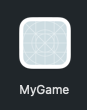
Mac Bundle App


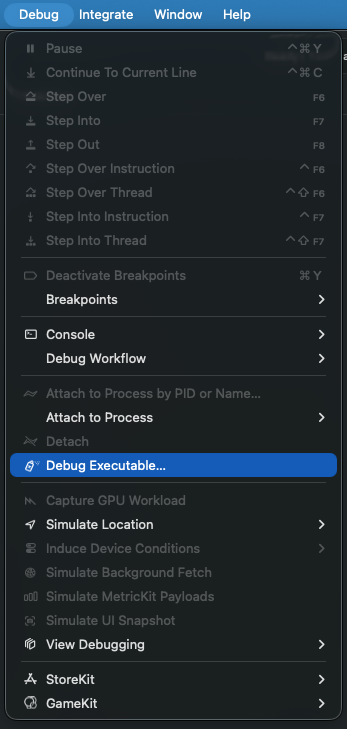
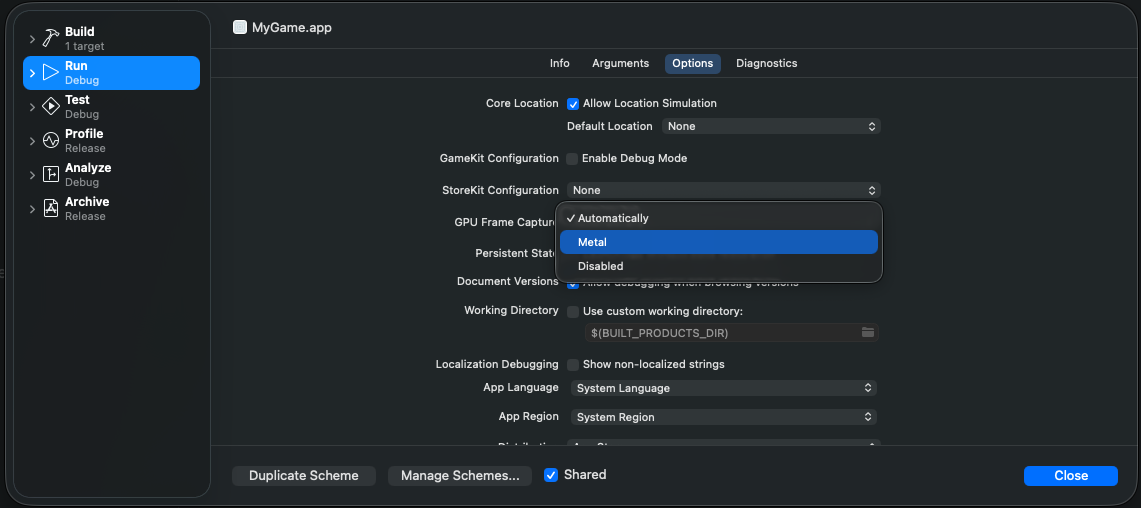
How to Debug with Metal Debugger:

Navigate to your Bundle:

Choose GPU Frame Capture: Metal

Hit Play and Click on the Metal Icon:

2 Likes